Your first score
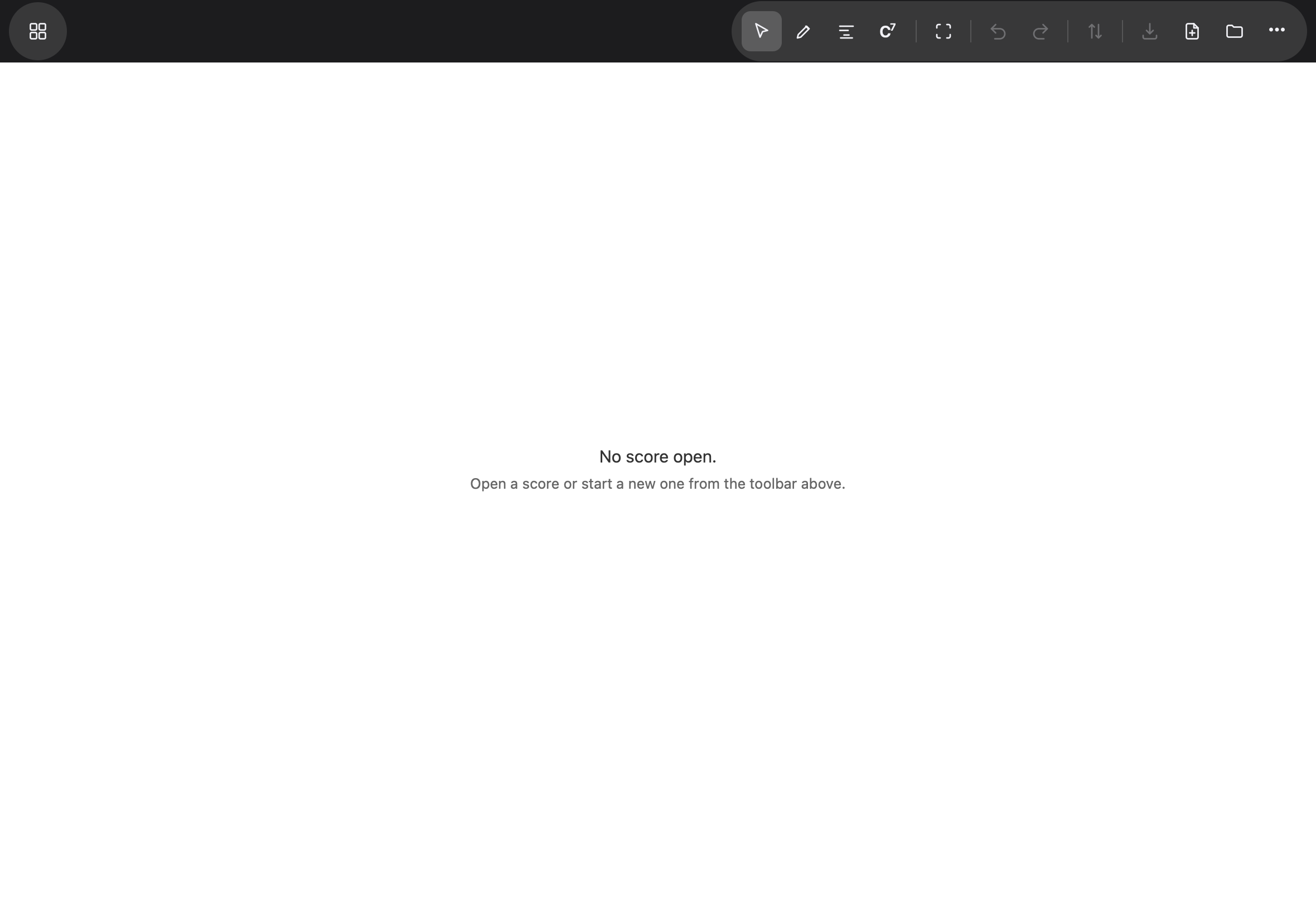
When Noteland has nothing open, it says so, and the toolbar is the way forward: New score starts one from nothing, Open score brings one in from Files.
Creating a score
Tap New score. Pick a template — Lead Sheet, Piano Solo, SATB, and seven more — or build your own from the instrument list on the right. The fields below set the title, key, time signature, number of bars and tempo; everything can be changed later.
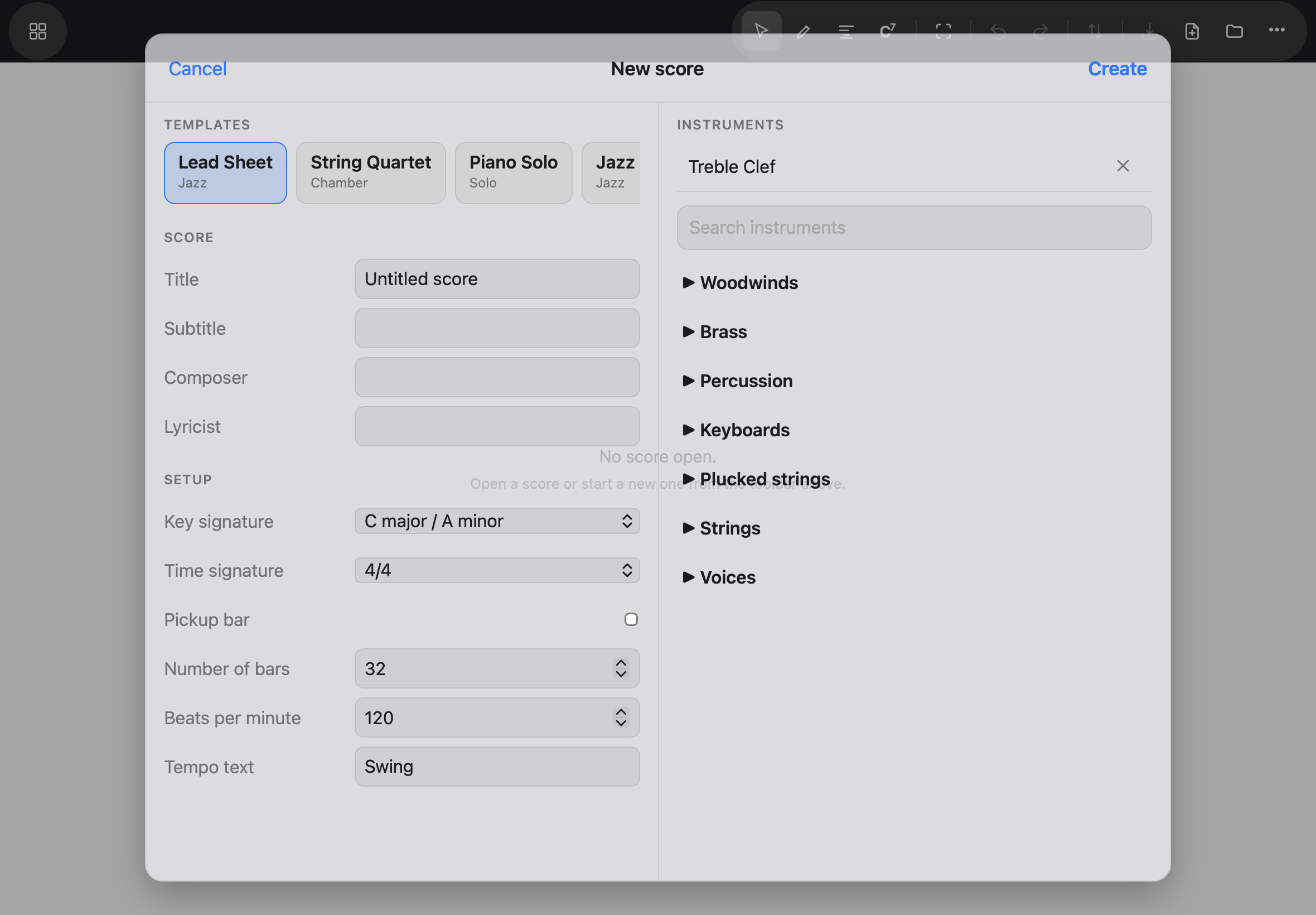
A template sets its instruments and its own defaults, and leaves the rest of your choices alone — picking Lead Sheet after you set three flats keeps your three flats. Tap Create, and the score opens ready to write.
One nicety worth knowing: a transposing instrument gets its own key signature. A clarinet in B♭ in a score in E♭ reads one flat while the violin beside it reads three.
Opening from Files
Tap Open score and pick a .musicxml, .xml or .mxl file — the formats MuseScore,
Sibelius and Dorico write. The score opens ready to edit, and the app confirms with the
file’s name.
Saving
Tapping Save opens the share sheet: choose Save to Files. Keep the score’s own name and save into its own folder, and iPadOS offers to Replace the file — choose Replace, and your changes are written back into the very file you opened.
Two things worth knowing. iPadOS opens the folder you last saved to, not the one you opened from, so you may need to navigate back to the score’s folder first. And every save passes through this dialog — no web app on iPad may write a file silently. The App Store version will one day make saving a single tap.
Everything you write is kept on the device as you work, so closing the app loses nothing. What the app cannot know is whether your file is current — if it isn’t, the next launch says once: “Changes to … are not in the file yet — Save to write them.” The habit that keeps your work safe is the one from the install page: save to Files regularly. The file in Files is the copy you own.