Notes and rests
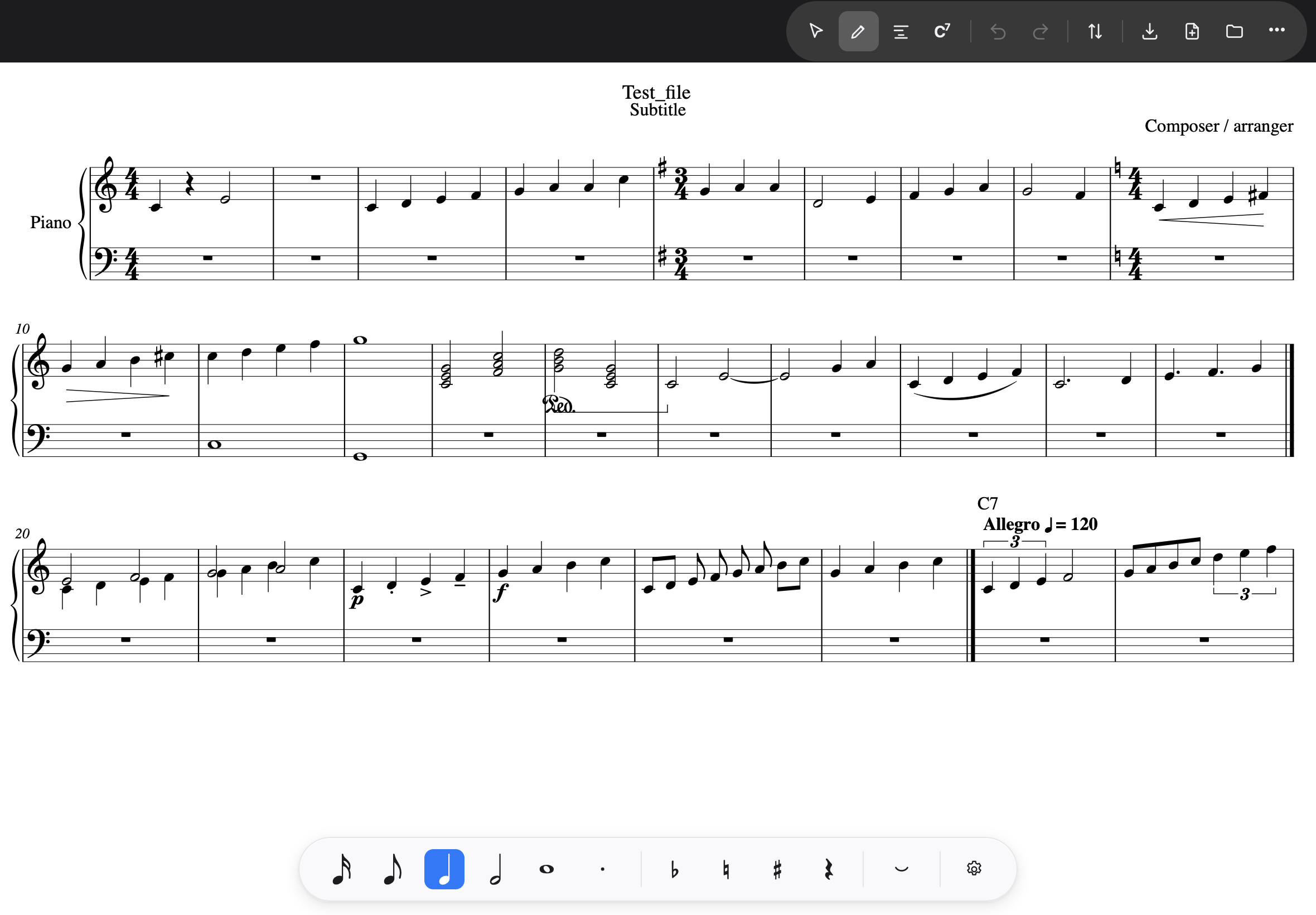
Tap the pencil button in the toolbar to enter compose mode. The note input strip appears along the bottom: durations from 16th to whole note, the dot, flat, natural and sharp, a rest, and the tie. 32nds, 64ths and extra voices are there too when you want them — switch them on under … → Settings → Input strip, and they stay on.
Writing a note
Choose a duration on the strip, then touch the staff:
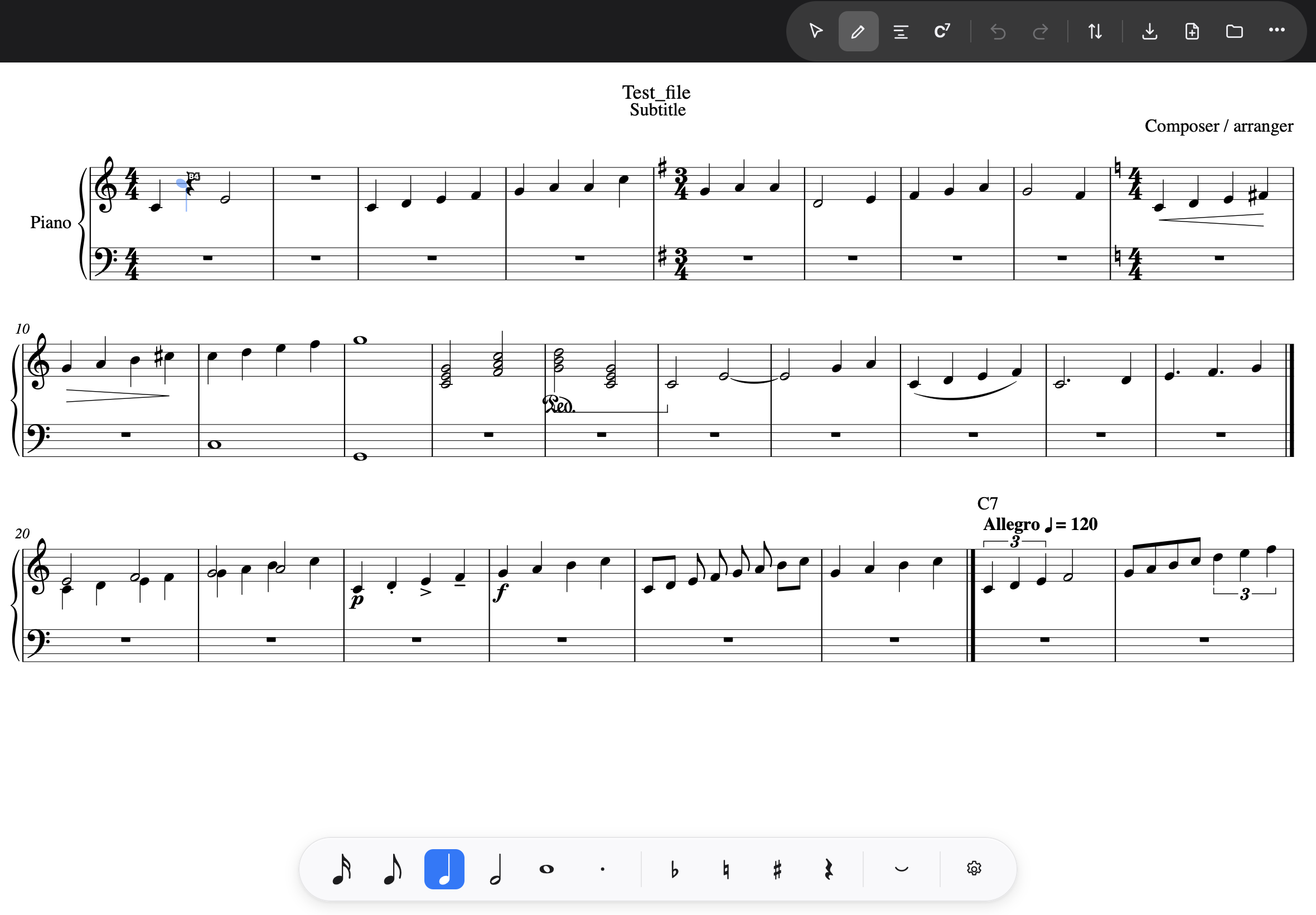
- With the Pencil, the ghost note appears the moment the tip touches.
- With a finger, rest it briefly — about a fifth of a second — and the ghost appears just above your fingertip, so your finger never hides what you are aiming at. A quick swipe still scrolls; the pause is what says “I mean a note”.
The ghost note is the blue preview: it rides the staff as you drag, naming the pitch it will become. Lift, and the note is written where the ghost was.
A few rules the page follows:
- A bar is always full. Writing a note replaces the rests around it; deleting a note puts rests back. There is no such thing as an empty bar — silence is written as rests.
- Placing a note where one already sounds in the same voice builds a chord.
- If a note cannot fit, nothing happens and the app says so — “No room for a note there” — rather than writing something you did not ask for.
- Long notes split across barlines become tied notes, as engraving demands.
Triplets and other tuplets
The tuplet button on the strip — Bravura’s own “3” — opens a small menu above it: Triplet, Duplet, Quintuplet. Choose one, and the next note you write becomes the first of a tuplet spanning the strip’s duration, MuseScore’s rule: with a quarter chosen, a triplet is three eighths in the time of that quarter. The bracket appears at once with the remaining slots as rests, the button clears, and the strip drops to the member’s value — an eighth — so your next taps fill the slots. A tap on the rest after the bracket is a plain note again.
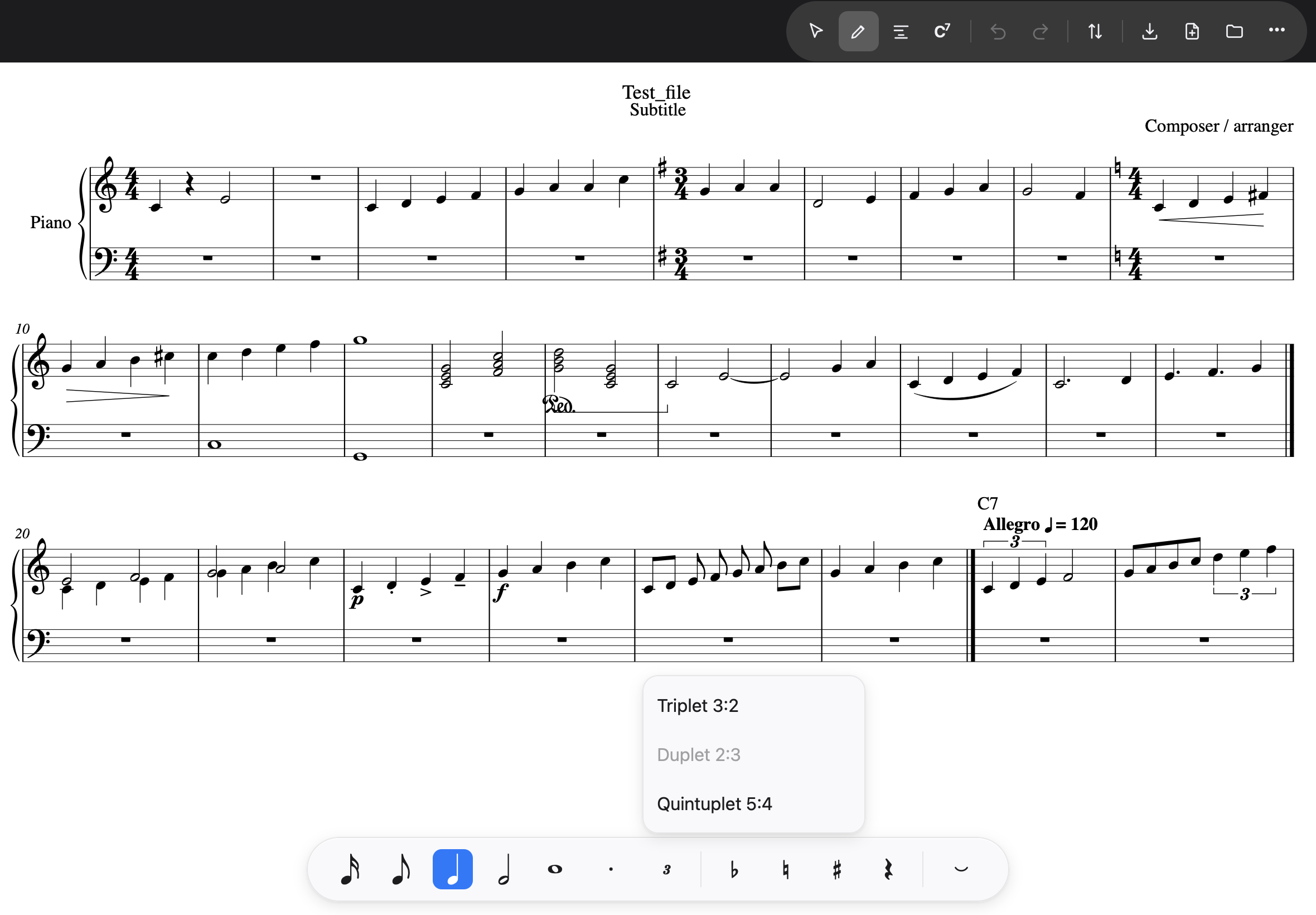
A duplet needs a dotted value (two in the time of three), so it is greyed until Dotted is on; a triplet cannot sit on a 64th, and says so the same way.
A note you already wrote can become a tuplet too: select it, tap the tuplet button, choose — the note’s own length is the span, and it stays as the first member with its pitch. Inside a bracket a note’s length is fixed by the ratio, so the duration buttons decline and say why; deleting a member turns it back into a rest and leaves the bracket standing. To remove the whole tuplet, tap its number — the “3” — and press Delete: one rest of its length takes its place.
Editing a note you already wrote
Back in selection mode (the arrow button), tap a note and the same strip reappears — now editing that note. The buttons light up to show what the note is: tap the dot and the note becomes dotted; tap a duration and it changes length (and the dot clears); Delete, Pitch up and Pitch down sit at the strip’s left end. Mistakes are cheap: Undo in the toolbar takes back any of it.
One honest caveat: editing a bar re-beams it to the meter’s standard grouping, so beaming that arrived with an imported file — vocal music beamed by syllable, say — is redrawn. Syllable-aware beaming is on the list, honestly labelled as not built yet.
Cue notes
A cue is a passage printed small — another instrument’s line, shown so a player knows where they are. Select the notes (a marquee across the bars is the quick way), open the … menu above the score and take Cue size. The notes and rests you selected are redrawn at three quarters, and a message says what happened — “3 notes cue-sized”.
The same item takes them back: when everything selected is already small, Cue size restores it to full size. A cue note is otherwise an ordinary note — it keeps its length, beams and ties like any other, and it is saved in the file as a cue note, so it stays small when you open the score again.
One note of a chord can be small on its own — a harmony note under the melody. Tap that notehead and take Cue size, or draw a marquee along the lower noteheads of a phrase: the noteheads you drew round are the ones that change, and the stems and beams stay full size.
Two voices, one rest
When two voices share a staff — soprano and alto, say — and both rest at the same moment, an engraved part draws one rest, not two. Open … → Score details… and tick Merge matching rests: wherever the two voices rest together for the same length, the page draws one rest on the middle line. A score made from the Choir (SATB) template starts with it on; any other score can have it, and any score can switch it off again.
The choice is saved with the score. Other programs that open the file will draw both rests — the music is all there; only the picture is Noteland’s.
When one voice is silent for a bar while the other sings — the tenor resting while the bass carries the line — an engraved part shows no rest for the silent voice at all. Select the rest, open the … menu and take Hide or show: on the iPad it stays faintly visible, so you can find it and show it again; in the PDF it is gone. A rest hidden in MuseScore arrives hidden, and goes back to MuseScore hidden.
Multimeasure rests
Where a part is silent for a run of bars, an engraved part draws one bar with a long stroke and the number of bars over it, not every empty bar in turn. Open … → Score details… and tick Multimeasure rests: every run of two or more bars that are empty in every staff is drawn as one such bar, with the count. A chord symbol at the start of a run is drawn over the long rest, as MuseScore draws it; a chord change further into the run keeps its own bar. Any other mark — a tempo, a rehearsal mark, a dynamic — keeps its bar on the page, as does a bar where the key or time changes, and a double barline ends a run.
Tap the long rest to select it: it is the run’s first bar, so Insert bars…, Delete bars and the clipboard act on that bar, and a note placed on it goes into that bar, which then leaves the run. To work inside the run, untick the box and the bars come back; tick it again when you are done — MuseScore works the same way.
The choice is saved with the score in the standard way, so MuseScore opens the file with the same long rests, and a MuseScore score that has them arrives with them. Every bar is still in the file; only the picture is collapsed.