Selecting
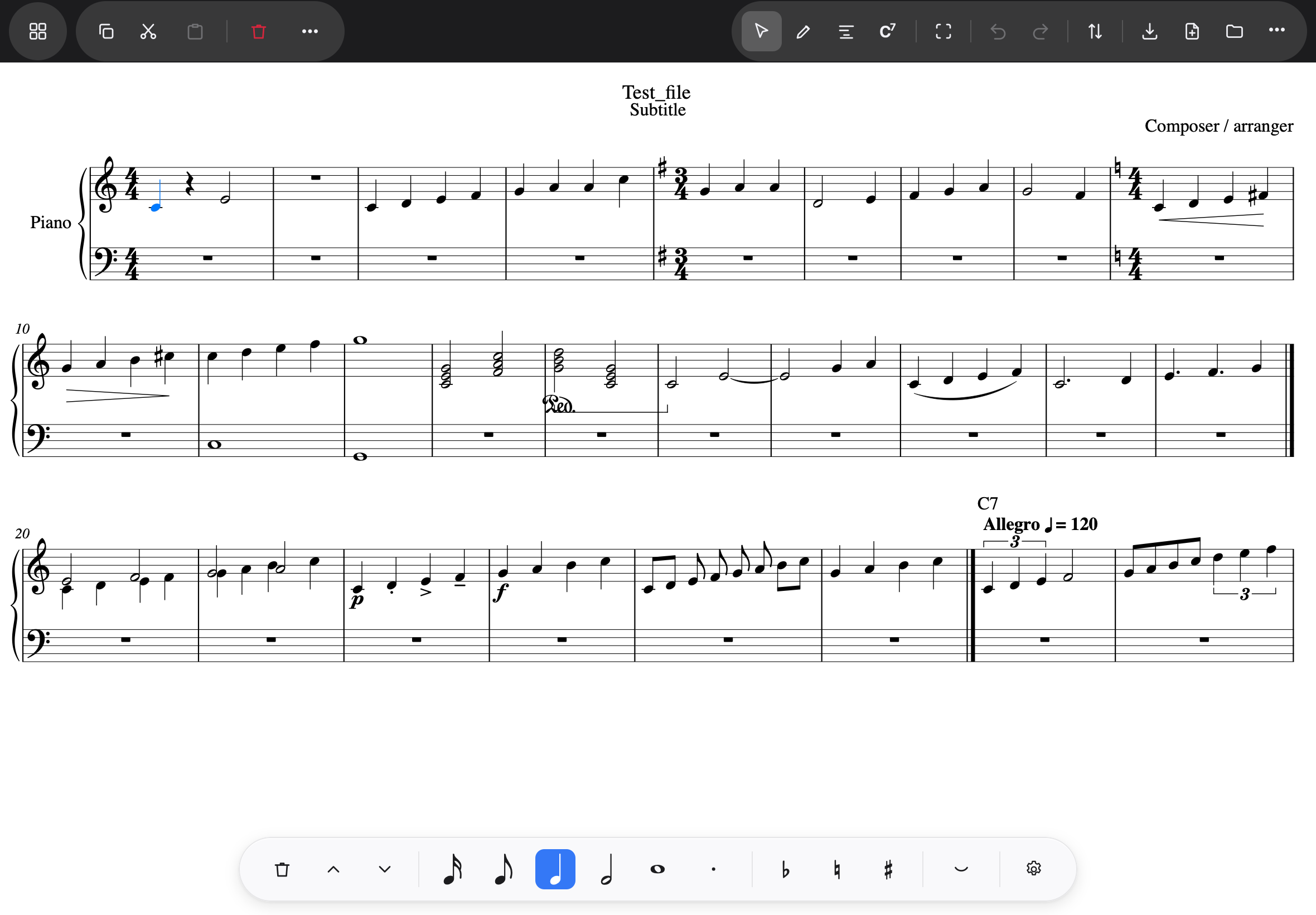
In selection mode (the arrow button), tap anything on the page — a note, a rest, a chord symbol, a barline, a dynamic — and it is selected. The tap is forgiving: the nearest selectable thing wins, and inside a chord the single note wins over the whole chord. A tap on empty paper clears the selection.
Selecting a single note brings up the input strip in its editing role — duration, dot, accidentals, delete, pitch arrows — as Notes and rests describes. For everything else, the strip above the score offers Copy · Cut · Paste · Delete and the … menu.
More than one thing
- Press and hold — about half a second — toggles the element under your finger and switches multi-select on. From then on, plain taps keep adding; tapping a selected element again drops it from the selection.
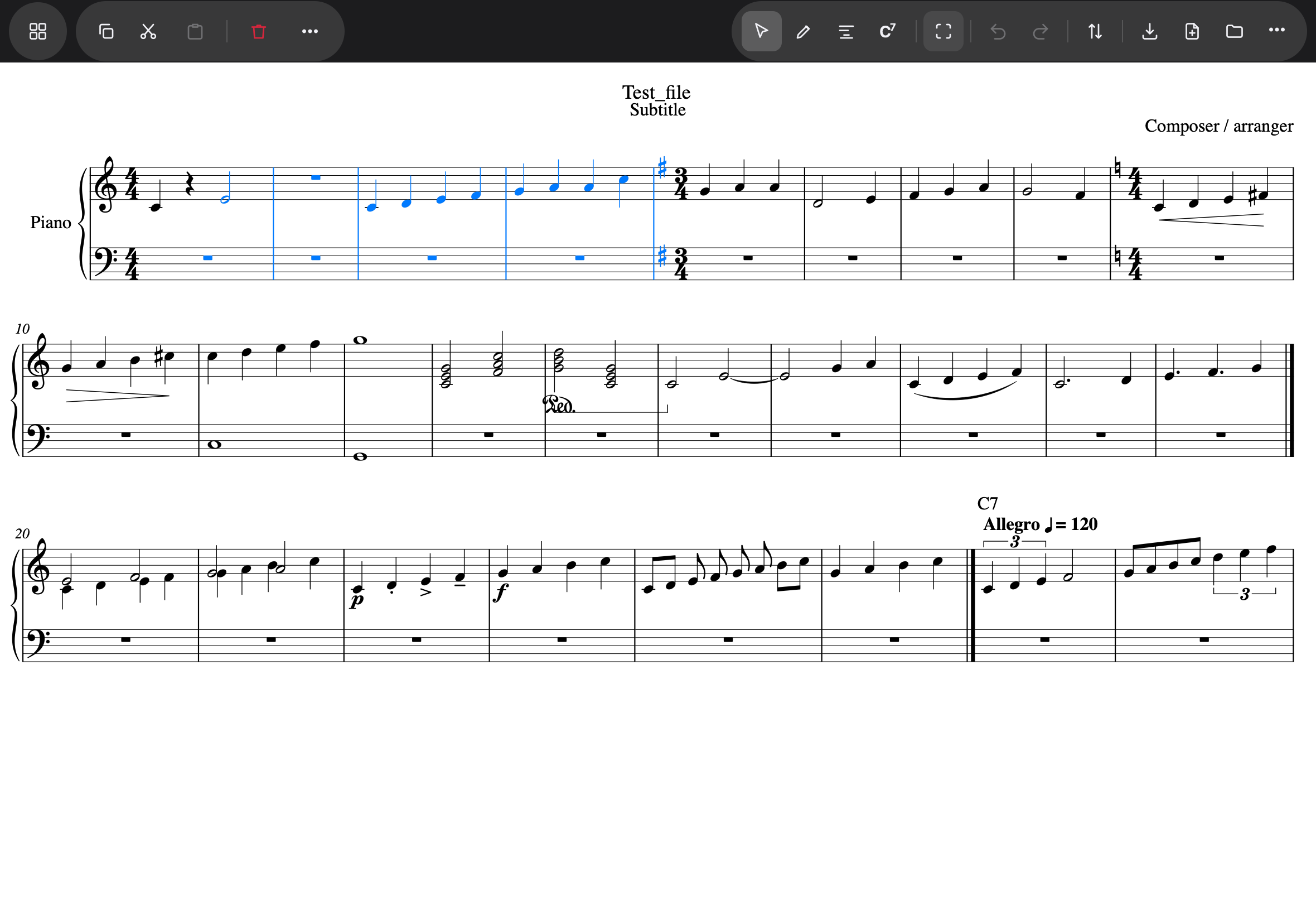
- The marquee: tap the dashed-rectangle button in the toolbar, then drag a rectangle. Anything the rectangle touches is selected — a stem crossing the edge is enough. It is one rectangle per arming: the button disarms itself after each drag.
- A marquee dragged across a bar selects exactly that bar — the quickest way to select a bar there is.
- An empty rectangle changes nothing, and the app says “Nothing in the rectangle”.
Two small gestures worth knowing
A two-finger double-tap puts the page back to standard size after pinch-zooming —
“Page fits the screen”. And with a hardware keyboard attached, Shift+←/→ extends the
selection and Cmd+A selects the bar — but every one of those has a touch route; the
keyboard is never required.